As a Transmission provider who has supported thousands of users and businesses in optimizing their torrenting workflows over the past five years, I’ve seen firsthand how unmanaged download speeds can turn a seamless file-sharing session into a frustrating bottleneck. Whether you’re a home user juggling work calls while downloading a large media archive, a small business distributing internal software updates across team devices, or a content creator seeding large project files without slowing down your network, setting a download speed limit in Transmission isn’t just a convenience—it’s a way to take control of your internet connection. Transmission

I get asked this question almost every week, and while the process might seem straightforward to seasoned Transmission users, there are small, often overlooked nuances that can make all the difference. Today, I’ll walk you through step-by-step how to set download speed limits in Transmission, share common mistakes we see our clients make, and explain why consistent speed management matters for both individual and business users.
First: A Quick Note on Why Speed Limits Matter for Your Network
Before we dive into the steps, let’s address why you’d want to set a limit in the first place. When Transmission is left to run at full speed, it can hog your entire bandwidth—leaving no room for other activities like video conferencing, cloud backups, or browsing. For small business users, this can lead to missed client calls or delayed internal operations, while home users might deal with laggy live streams or slow page loads. As a Transmission provider, I recommend speed limits tailored to your specific internet plan: for most residential plans, cap download speeds at 70-80% of your maximum advertised speed to leave headroom for other traffic; for business plans, adjust to match your team’s concurrent usage needs.
Step 1: Access Transmission’s Main Interface
The first step, of course, is to open Transmission. How you access it depends on whether you’re running it on a desktop (Windows, Mac, Linux), a NAS device, or a router—all common use cases for our clients.
- For desktop users: Launch Transmission from your applications menu. If you installed it via a package manager (like Homebrew for Mac, apt for Linux, or the official installer for Windows), it should open automatically.
- For NAS or router users: You’ll access Transmission via a web browser. Type your device’s local IP address followed by the Transmission port (most commonly 9091) into your browser’s address bar. For example, if your NAS IP is 192.168.1.50, you’d enter http://192.168.1.50:9091. If you’ve set up remote access, you can also use your public IP or dynamic DNS address, just make sure you’re on a secure, private network.
Once you’re logged in, you’ll see your active torrents, your overall bandwidth usage, and a menu bar at the top. This is the main control center for all your speed settings.
Step 2: Two Types of Download Speed Limits to Choose
One of the things that surprises new users is that Transmission gives you two distinct options for setting download speed limits: a global limit that applies to all torrents, and individual limits that you can set per torrent. This flexibility is why so many of our business clients rely on Transmission for multiple use cases.
Global Download Speed Limit (Applies to All Torrents)
The global limit is perfect if you want a consistent cap across every active download—say, you never want Transmission to use more than 5 Mbps of your home internet. Here’s how to set it:
- Look at the top menu bar of the Transmission interface. Click the “Edit” dropdown, then select “Preferences” (or use the keyboard shortcut Command+, on Mac, Ctrl+, on Windows/Linux).
- A new window will pop up with several tabs: General, Bandwidth, Network, Remote, and more. Click the “Bandwidth” tab—this is where all your speed control settings live.
- Under the “Download” section, you’ll see a box labeled “Limit down.” By default, this box is unchecked, which means Transmission will use all available bandwidth for downloads. Check the box to enable the global download limit.
- Enter your desired speed in the number field next to it. The unit will default to Kbps (kilobits per second) or Mbps (megabits per second) depending on your Transmission settings, but you can type a value directly—for example, typing 1000 will automatically convert to 1 Mbps, which is ideal for light usage.
- Click “Save” at the bottom of the window. That’s it! From now on, every active and new download will stay under your set global limit.
Per-Torrent Download Speed Limit (Custom for Each Download)
If you’re downloading a large 4K movie while also seeding a small software update for your team, you might not want to cap both at the same speed. That’s where individual per-torrent limits come in, and it’s a feature we frequently highlight to our small business clients who manage multiple distribution tasks.
- From the main Transmission interface, select the torrent you want to adjust. You can click multiple torrents at once if you want to apply the same limit to several.
- Right-click the selected torrent(s) to open the context menu, then hover over “Speed Limits.”
- Click “Limit Download Speed” from the submenu. A small pop-up will appear where you can enter the custom speed for that specific torrent.
- Enter your desired value, click “OK,” and the limit will take effect immediately. The torrent will automatically adjust its download speed to stay within your custom cap, while other torrents or your global limit remain unchanged.
This is a game-changer for power users. For example, if you’re downloading a critical internal tool that your team needs tomorrow, you can set its per-torrent limit to 10 Mbps to prioritize it, while setting a lower 2 Mbps limit for a personal media download happening at the same time.
Step 3: Avoid These Common Speed Limit Mistakes
After working with hundreds of Transmission users, I’ve noticed small errors that end up undermining their speed management. Here’s what to watch for:
- Mixing up Kbps and Mbps units: Transmission defaults to Kbps, but many users accidentally enter Mbps values without adjusting. For example, typing 1000 in the download limit box will result in 1 Mbps, not 1000 Mbps—most residential internet plans top out at 100-500 Mbps, so even large numbers won’t exceed your plan’s max. Double-check the units next to the number field to avoid accidentally setting a limit that’s either too low or too high.
- Forgetting to enable the global limit: It’s easy to check the “Limit down” box but assume it’s working, but sometimes after updates, settings reset to disabled. If you notice your internet is slow, double-check the Preferences > Bandwidth tab to confirm the box is still checked.
- Ignoring seeding speeds: Speed limits for seeding are separate from download limits. If you’re only setting a download limit, your upload (seeding) speed might still be hogging bandwidth. As a Transmission provider, I always recommend setting a seeding limit in the same Bandwidth tab to match your download limit, for balanced network usage.
- Not adjusting limits for peak hours: Many users set a static speed limit and never change it, but your internet has faster speeds during off-peak hours (late night, early morning) and slower during peak (evening, when most people use the internet). Some Transmission versions let you set scheduled limits, but if yours doesn’t, manually adjusting your global limit during peak times is a quick fix.
Step 4: Advanced Tips for Business and Power Users
For our business clients who rely on Transmission for team file sharing or software distribution, we have a few extra tips to make speed limits even more effective:
- Set a maximum number of active torrents: Even if your speed limit is set, too many active torrents can slow down connections. In the Bandwidth tab, you can set “Maximum simultaneous downloads” to a number that fits your team’s needs—for example, 2-3 concurrent downloads for a small team, so each gets enough speed.
- Use remote speed management: If you access Transmission via a web interface (common for NAS devices), you can adjust speed limits from anywhere, which is perfect for managing team downloads while you’re out of the office. Just make sure your remote access is secured with a strong password to avoid unauthorized changes.
- Test your speeds after adjusting: After setting a limit, run a quick speed test on your internet connection to confirm that other activities are working as expected. If your video calls are still laggy, lower the Transmission limit by 10-20% to leave more headroom.
Why We Prioritize Transmission Speed Management as a Provider
As a Transmission provider, our core goal is to help users leverage the power of torrenting without sacrificing network performance. Unmanaged torrent traffic is one of the top causes of network slowdowns for small businesses, which is why we include built-in speed limit tools with all our Transmission setups, and provide customized guides for each client based on their internet plan and usage.
Whether you’re a casual user who just wants to stream while downloading, or a business distributing files to dozens of team members, setting a download speed limit in Transmission is a simple, effective way to take control.
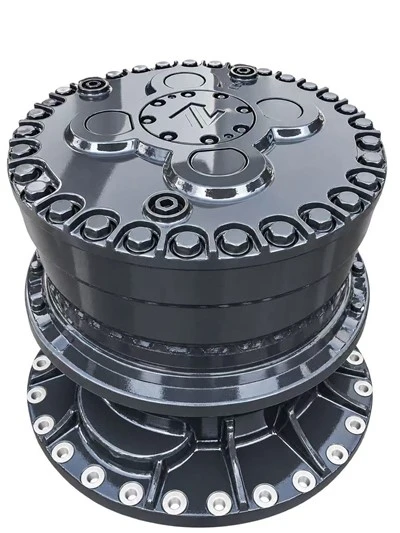
If you’re looking to optimize your Transmission setup for your team’s specific needs, or you’re interested in a customized Transmission solution tailored to your network workflow, reach out to our team to discuss. We’ll work with you to set up speed limits, adjust bandwidth settings, and ensure your torrenting doesn’t disrupt your critical operations.
References
Spare Parts Transmission Official User Guide.
Bandwidth Management for P2P Networks (ACM SIGCOMM 2021).
NAS and Router-Based Transmission Deployment Best Practices (Storage Networking Industry Association, 2023).
Shandong Huashou Transmission Technology Co., Ltd.
Shandong Huashou Transmission Technology Co., Ltd. is one of the most experienced transmission manufacturers and suppliers in China, also supports customized service. Please feel free to wholesale advanced transmission in stock here and get quotation from our factory. Quality products and reasonable price are available.
Address: No.6 Jinkang Road, Kangyi Town, Wenshang County, Jining City, Shandong Province, China
E-mail: 19285488291@163.com
WebSite: https://www.chinahuashou.com/
